
In order for you to connect to your Windows VPS with your Android phone or device, make sure you have your VPS IP and password noted down somewhere.
Your VPS IP and password are in the email we have sent you with the subject: "WebAiry (VPS Access Details)".
Then please follow the steps below:
- Download “Windows App” Application For Android: https://play.google.com/store/apps/details?id=com.microsoft.rdc.androidx&hl=en_IN&gl=US
- Open “Play Store” and search for “Windows App“. Next, click on “Install“.
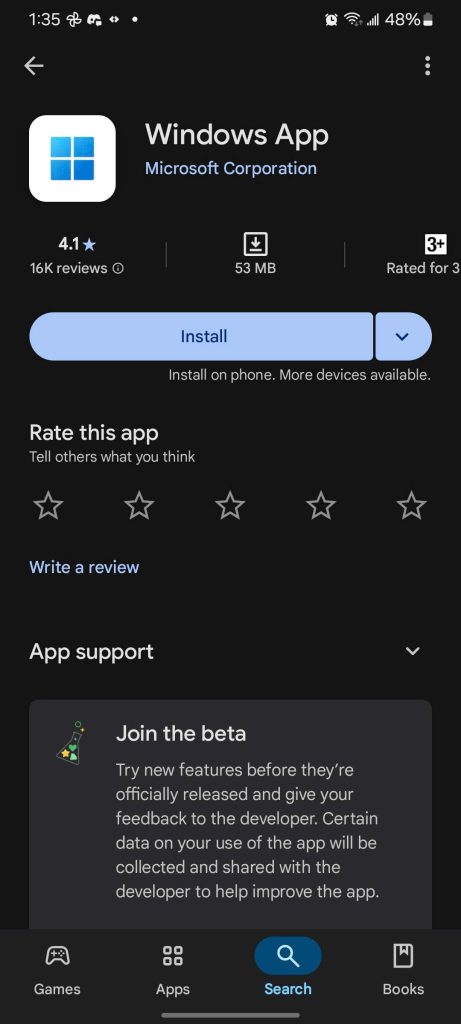
- Once you install the “Windows App” application by Microsoft Corporation, open it.
- Click on the “+” button (Top Right Corner), select “PC Connection“.
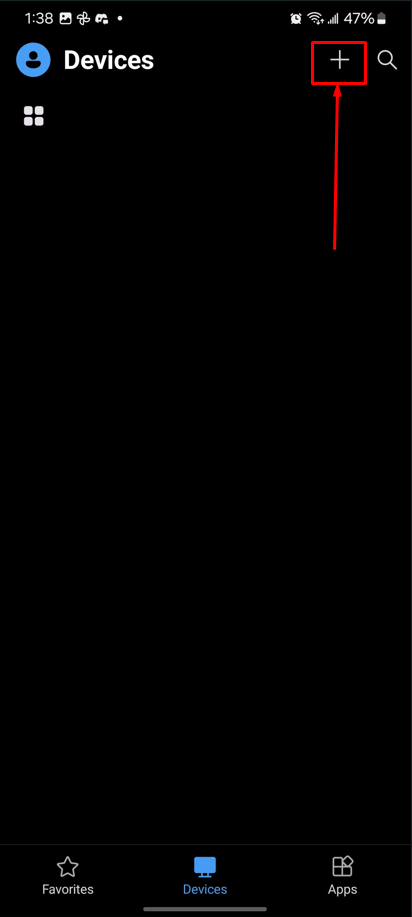
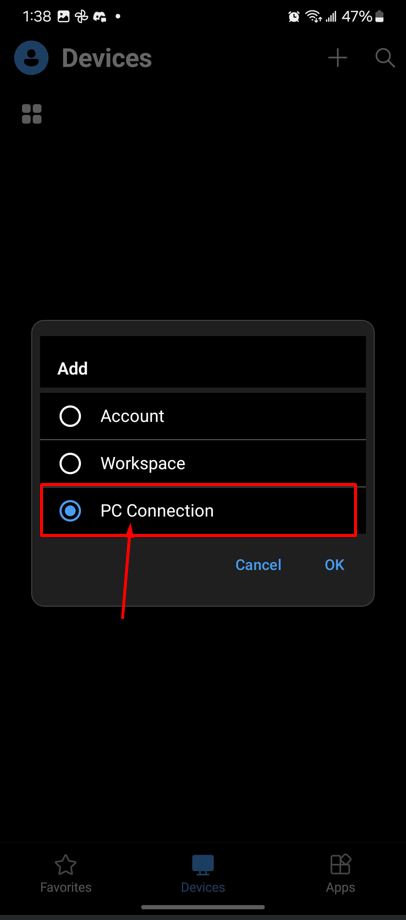
- PC Name – Put IP address of the Windows VPS.
- User Account – You can configure the administration login credentials from this option.
- Friendly Name (Optional) – Name your Windows VPS for your reference.
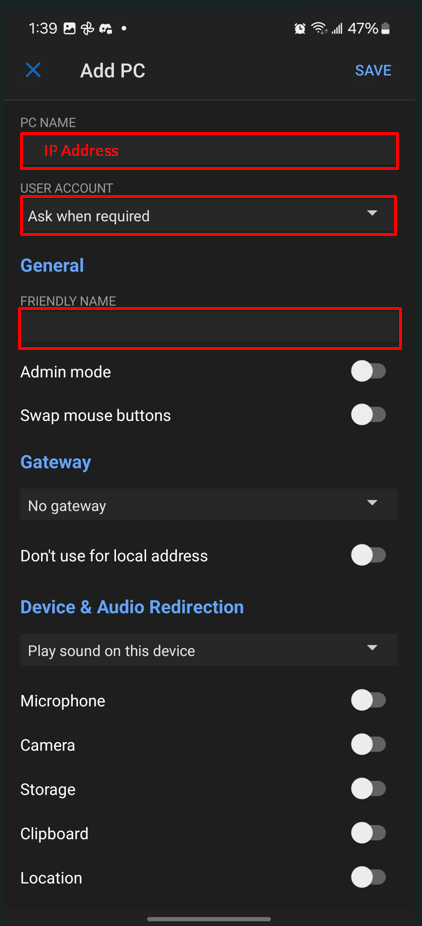
- You can manually add the administrator user logins or keep filling in the logins while accessing the Windows VPS. But if you want to save your server password so you won’t need to manually enter your password each time accessing your server, please click on “Ask when required” and select the second option, “Add User Account” from the popup.

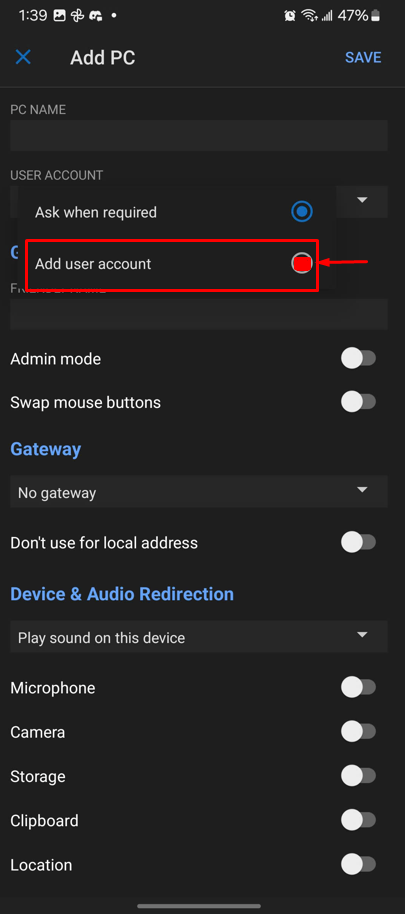
- Type Administrator in the USERNAME field and your password in the PASSWORD field, and click the CONTINUE button:
- Check the checkbox of "Never ask again for connections to this PC" and click the CONNECT button:
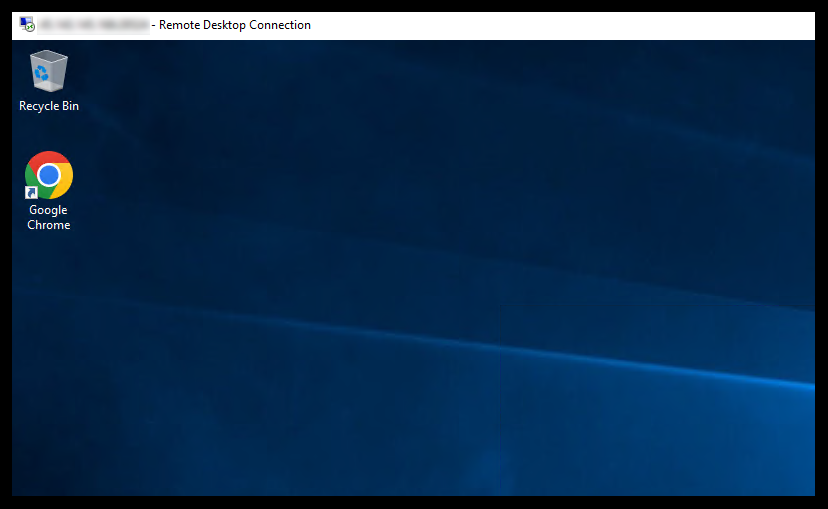
- Congratulations! Now you are logged in to your remote desktop interface of your Windows VPS: